Update my Subscription
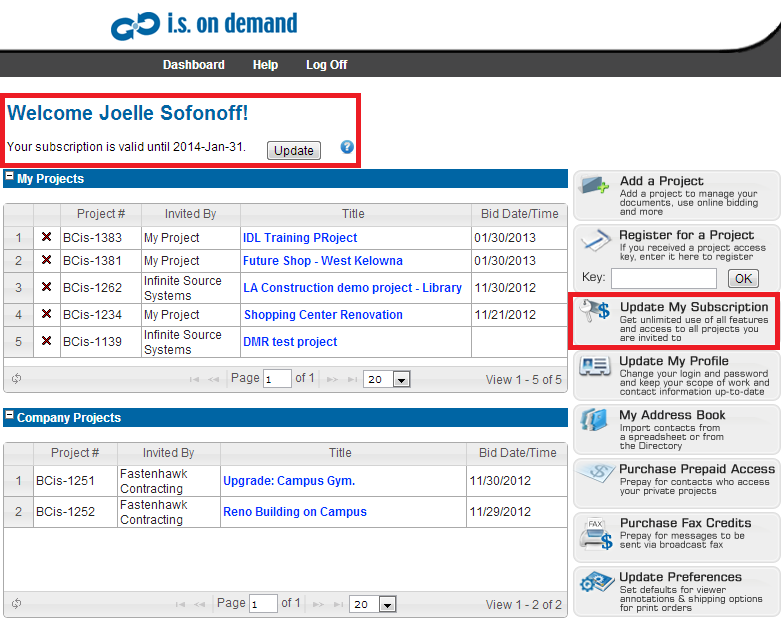
On the Dashboard, you will find your current subscription status directly under your name at the top left of the page. You will also see a Purchase or Update my Subscription button down the right side of the Dashboard.
View the Purchase or Update button to view your Subscription options.
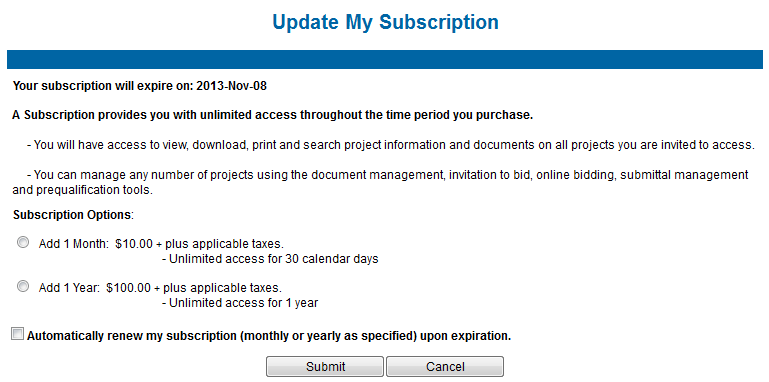
In the Purchase or Update my Subscription window, you will be shown your current subscription status at the top of the page. The image below is showing an active subscription that will expire on November 8, 2013.
Below your subscription status, you will see a brief explanation of what a subscription is. For more details click here.
At the bottom of the page you will have 3 options for purchasing or updating your subscription:
1. Purchase/Add 1 Month
If you do not have a subscription, you will have an option to purchase a 1 month subscription for $10. If you do have an active subscription, you can choose to add 1 month to your expiration date. To purchase a 1 month subscription, click the radio button next to that option and click Submit.
2. Purchase/Add 1 Year
If you do not have a subscription, you will have an option to purchase a 1 year subscription for $100. If you do have an active subscription, you can choose to add 1 year to your expiration date. If you wish to purchase a 1 year subscription, click the radio button next to that option and click Submit.
3. Automatically Renew
If you have purchased a subscription using a credit card online, you will be provided the option to have your subscription automatically renewed when it expires. For example, if you purchased a 1 month subscription, your credit card would be charged $10 +tax every month until you turn off Auto-Renew. If you wish to turn this feature off, uncheck the box and click Submit.